
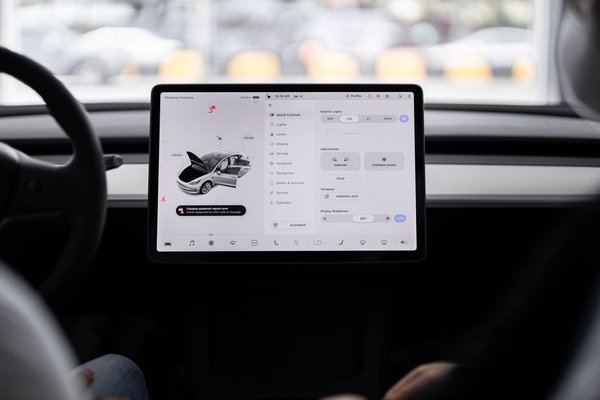
A dashboard screen that freezes, drops Bluetooth calls or struggles with navigation can make driving frustrating. Sometimes a software update fixes the problem; sometimes it introduces unexpected changes. The safest way to update car infotainment software is to treat it as vehicle maintenance, not a phone app update. The right file, reliable power and manufacturer instructions matter more than speed.
There is no universal procedure. An over-the-air update on one car may install while the vehicle is switched off, while a USB update on another may require the engine running. Start by finding out what your system needs.
Identify your system before looking for an update
Open the infotainment settings and look for System Information, Software Information, About or Version. Record the firmware version, navigation version and head unit model details. Photograph the screen so you have a reference afterwards.
Check the car’s model year, trim and multimedia system name against its handbook or official UK manufacturer support pages. Two cars with the same badge can have different head units. A vehicle identification number (VIN) can help an official portal identify compatible files, but a VIN alone does not guarantee an update applies.
Establish what is being updated. A map download may refresh road data without changing the infotainment firmware. A connected phone app update will not necessarily fix the built-in screen. If Bluetooth is your only concern, our guide to car Bluetooth connection problems is a useful related check.
Choose the official update route
Over-the-air updates
Some connected vehicles download manufacturer updates through mobile data or Wi-Fi. Check the software update menu and companion app for availability, release notes and installation conditions. Downloading in the background does not always mean installation can begin immediately.
Ford explains that some SYNC 4 updates can be scheduled to install with the vehicle switched off. Follow your display rather than assuming the engine must stay running. Check whether a subscription, suitable signal or sufficient battery charge is required.
USB or SD-card updates
Other systems use a computer and removable storage. Download the correct manufacturer update from an official portal and follow its preparation instructions. Some tools create the required folders automatically; others specify a storage format or capacity. Do not rename or rearrange files unless instructed.
For a UK example, Hyundai provides a navigation update portal where owners can search by VIN or vehicle type and prepare supported updates on removable storage. Its guidance for relevant USB installations says to keep the engine running and not remove the drive during installation. That is a Hyundai procedure, not a rule for every car.
Retailer installation
Some older systems, interrupted installations and updates affecting multiple vehicle modules need dealer equipment. Toyota UK directs owners of certain Touch & Go systems to dealers for map updates, while other systems support USB or over-the-air methods. If the manual requires a workshop, avoid unofficial shortcuts.
Prepare the car and protect your settings
Read the release notes and confirm the file matches the vehicle’s market, system generation and current version. Avoid firmware shared on forums, even if another owner reports success. A file intended for another region or head unit may fail or disable features.
Record paired phones, favourite stations, navigation destinations and audio preferences. Use an official backup option if offered. Not every head unit update preserves settings, and a few photographs can save time if you need to configure them again.
Park somewhere safe where you will not need the car immediately. Allow uninterrupted time, secure reliable connectivity if required and follow the manufacturer’s power instructions. For electric cars, do not assume connecting a charging cable satisfies every update’s battery requirements. Never leave an engine idling somewhere unsafe or prohibited just to finish an installation.
If the 12-volt battery has recently gone flat, the car displays electrical warnings or the manual mentions a workshop power supply, consult an authorised service centre. Stable voltage matters during critical software installation.
Install carefully and verify the result
Start from the vehicle’s official update menu or the process specified in its manual. Read warnings about unavailable functions or temporary restarts. Do not drive, unplug storage, press reset buttons or cycle the ignition unless instructed.
Progress indicators may pause. A display can restart or briefly go dark during normal installation. Do not interpret a quiet screen as proof of failure. Wait for the documented completion signal rather than improvising a recovery procedure.
After completion, reopen the version screen and compare it with your earlier photograph. Test audio, Bluetooth calls, navigation, reversing-camera display and smartphone integration while parked. If your phone no longer connects, check pairing and permissions first. Our guide to setting up Android Auto and Apple CarPlay can help with that check.
What to do if the update fails
If no update appears, the system may already be current, may not support that delivery method or may need a dealer visit. Check the exact model and release notes. Do not force a reinstall because a screenshot online shows a newer version.
For a rejected USB package, verify the correct regional portal, supported storage device and file arrangement. Try another device only if suggested by the manufacturer.
If installation stops, the screen remains unresponsive beyond the documented period or essential displays behave unexpectedly, contact manufacturer support or an authorised repairer. Repeated resets and unofficial recovery files can complicate diagnosis. Keep error messages, original version details and the attempted update information.
Frequently asked questions
Are car infotainment updates free?
Some are included; others, particularly map downloads or connected services, may require an active entitlement or subscription. Check the UK manufacturer portal for your exact system.
Can I update infotainment software while driving?
Do not start an installation while driving. Some vehicles download files during a journey, but installation should happen only under the manufacturer’s specified parked and power conditions.
Will an update delete Bluetooth pairings and presets?
It depends on the car and update. Many retain settings, but some reset them. Photograph your preferences and use an official backup option where available.
Does updating maps also update the head unit?
Not necessarily. Map databases, applications and core firmware may have separate versions and procedures. Check the manufacturer’s description to see what the package changes.
Keep the process predictable
A safe manufacturer update starts with correct system identification, not the first download you find. Confirm compatibility, protect your settings, follow battery and installation requirements, then verify the version and everyday functions. If instructions are unclear or the system is already faulty, professional assistance is safer than an incompatible file. For ongoing maintenance, our car infotainment troubleshooting guide can help distinguish software problems from connection and hardware faults.